Your Empire and fleets
Import the OGame Empire page, check the values, set your class and your recyclers’ capacity.
The public API does not say what fleet, defences or technologies you have. So that the assistant can calculate with your real data, Orbit reads the game's Empire page that you save on your computer. The file is read in your browser: Orbit does not connect to the game, does not use your credentials and does not touch your session.
Import the Empire page
- In OGame, open Empire on the Planets tab.
- Save the page with your browser's Save as (right-click or Ctrl+S). HTML or MHTML both work.
- In Orbit, open Empire and, at step 01 · Planets, click Attach file and choose the saved file.
- Go back to the game, switch to the Moons tab, save a second file and attach it at step 02 · Moons.
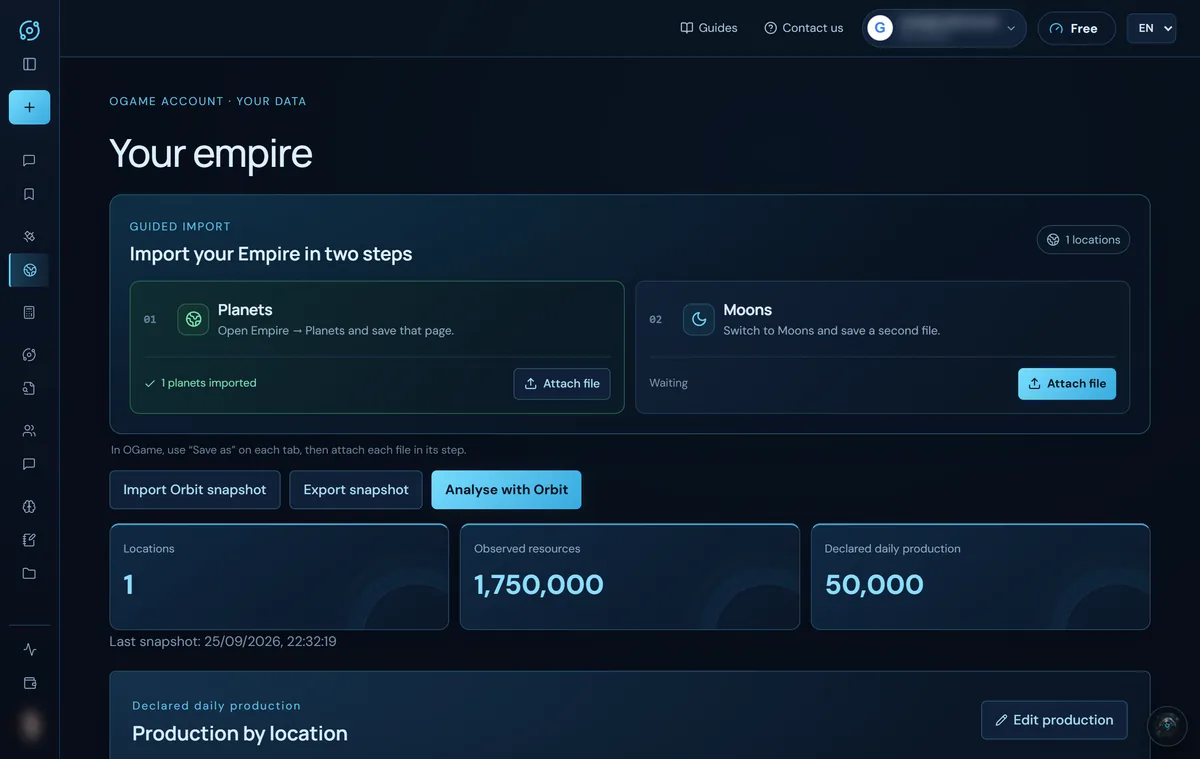
Files of up to 25 MB and up to 50 locations are accepted. Each import is merged by coordinates: anything not in the file is kept.
What is imported: the name, coordinates and type (planet or moon) of each location, its current resources, the fleet and defences at each one, and your research. Not imported: buildings and daily production; you can enter production yourself with Edit production.
Important: fleet, defences and technologies are only saved if the coordinates match the planets of a synchronised commander. Synchronise your account first (Getting started).
Check the values
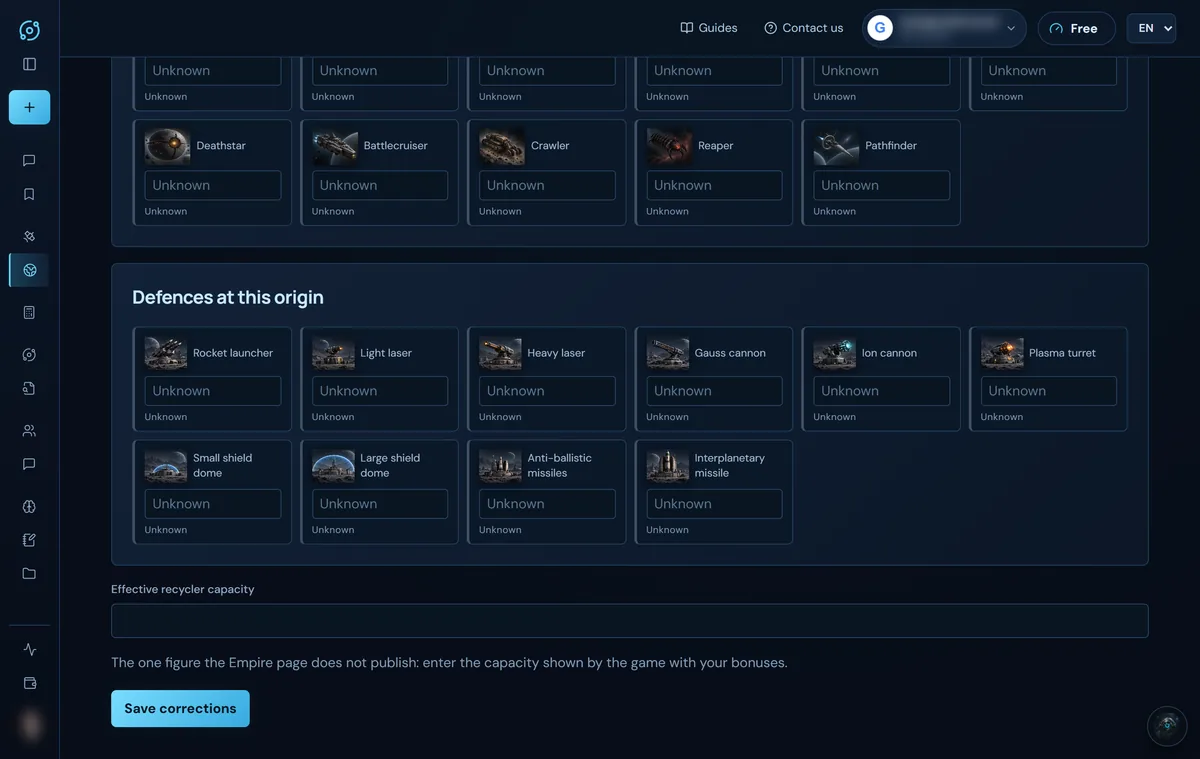
Below, in Fleets and technologies, you pick the origin in Attack from and see three blocks: account technologies, fleet at that origin and defences at that origin.
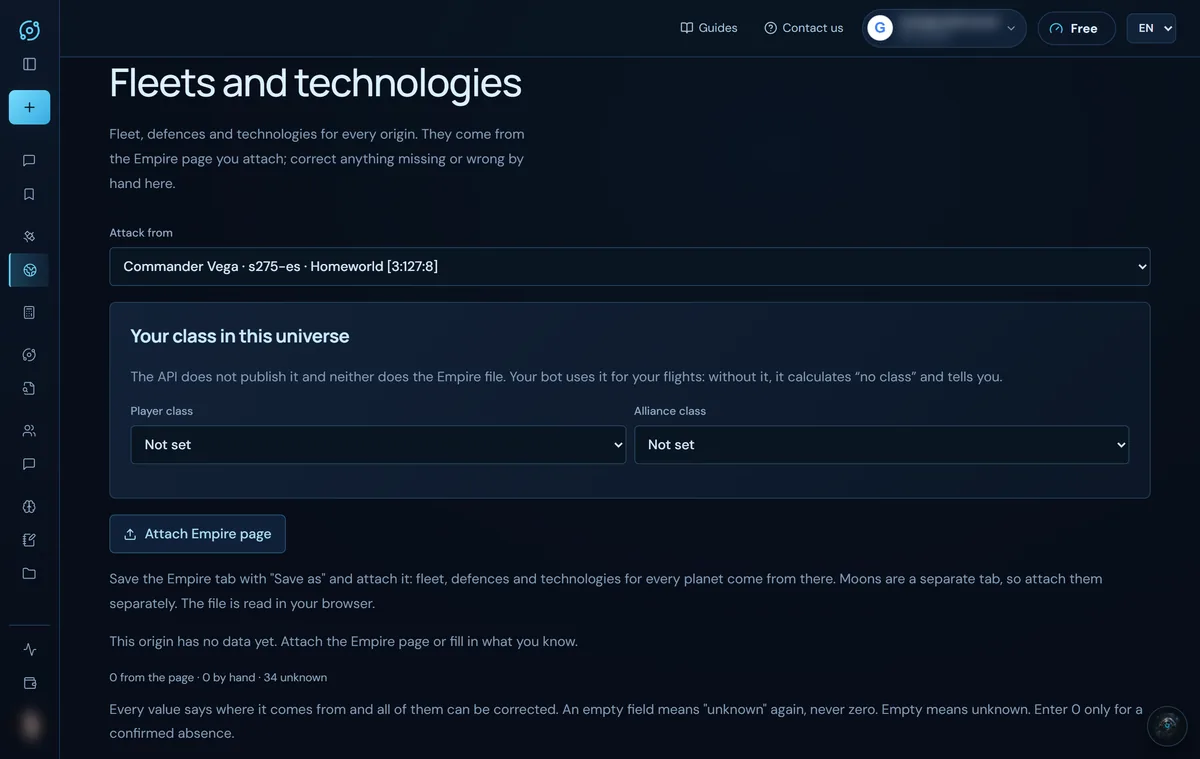
- Each value shows where it comes from: From the page, By hand or Unknown.
- Empty means unknown. Only enter 0 when you know for sure you don't have that ship.
- Correct anything missing or wrong and click Save corrections.
- If a later import changes a value you had corrected by hand, Orbit warns you so you can review it.
Your class
Neither the API nor the Empire file publishes your class. In Your class in this universe, choose your player class (Collector, General, Discoverer) and your alliance class (Trader, Researcher, Warrior). It is saved instantly. The assistant uses it for your flights; if you don't set it, it calculates “no class” and tells you so.
Your recyclers’ capacity
This is the one figure the Empire page does not include. In Effective recycler capacity, enter the capacity the game shows you with your bonuses. With it, the assistant works out how many recyclers a debris field needs.
What next
- Analyse with Orbit takes your empire to the chat so the assistant can review it (uses energy).
- Export snapshot and Import Orbit snapshot save or restore your empire as a JSON file.
- With your fleet saved, ask the assistant about combat, flights or expeditions without having to dictate your ships.
Screenshots show the English interface with sample data; player names are fictitious.