The universe map
From the universe to galaxies and each system: zoom with the wheel, drag, go to a system, planet cards and the player report.
The Scanner entry in the menu opens the map of your active universe. It is a single canvas you move around like a map: the level of detail changes with the zoom, with no tabs or jumps. Browsing the map is free and unlimited.
How to move around
- Mouse wheel (or trackpad pinch): zooms in or out, keeping the point under the cursor fixed. Zooming in goes in: into the galaxy at the centre and, closer still, into the system in front of you. Zooming out leaves the system and then the galaxy.
- Drag: moves the map. Dragging does not count as a click.
- Click: on a galaxy, takes you there; on a system, goes into it; on a planet, opens its card.
- Go to: when you open any tab of the panel on the right, the Go to field appears. Type galaxy and system (
1:52;1.52or1 52work too) and press Enter: the map flies to that system. - On phones and touch screens you can drag and tap to go in; continuous zoom is with the wheel or trackpad.
If you have no active universe, the map first shows the universe selector.
Universe level: the galaxies
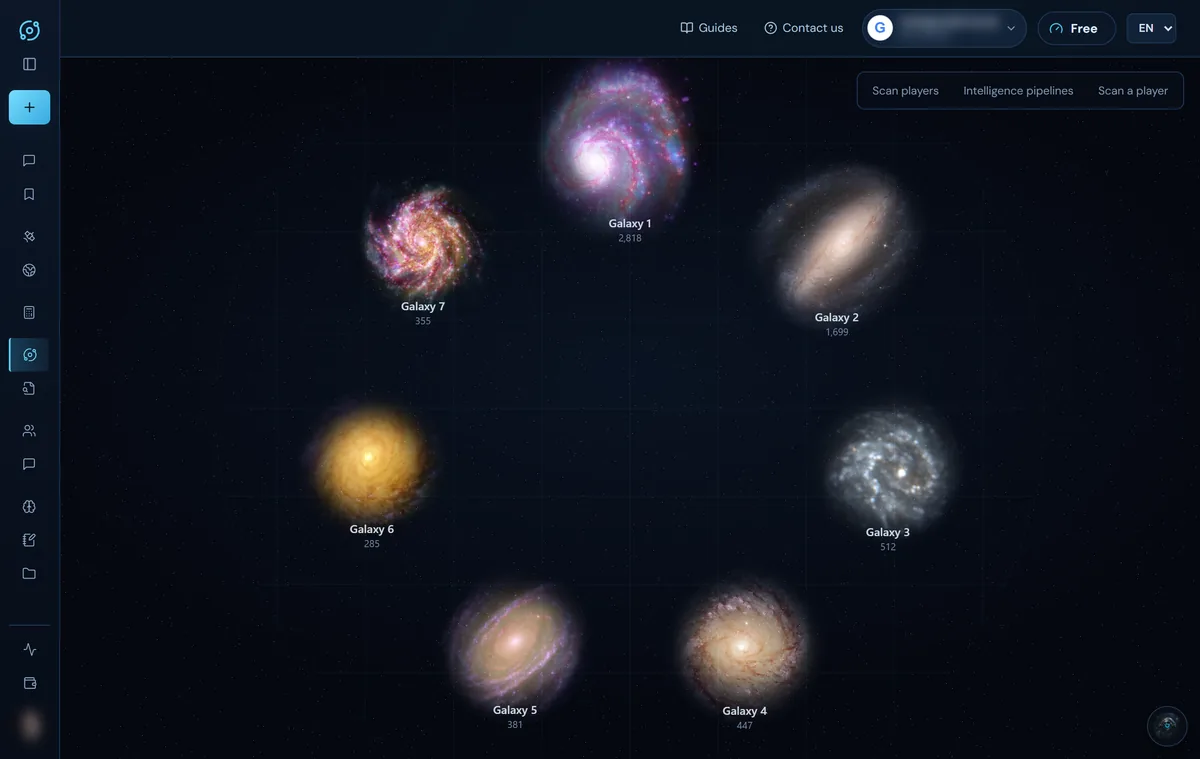
The galaxies form a ring. Each one shows its number and how many planets it has underneath, and its size grows with them: density is shown as it really is, so you can see at a glance where there is more competition and where there is room left.
Galaxy level: the ring of systems
As you zoom into a galaxy, its image fades and its systems appear in a ring, with system 1 at the top and the rest clockwise. Neighbouring systems sit next to each other, just like in the game.
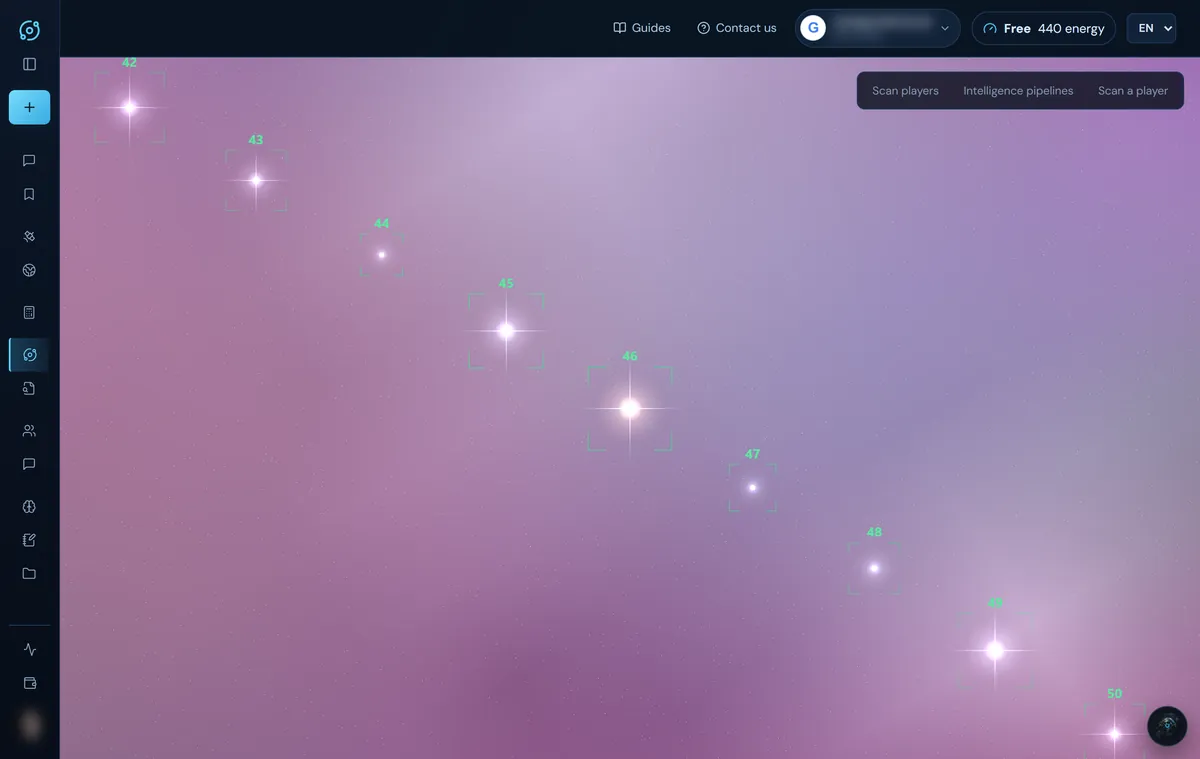
- The brightness and size of each star tell you how crowded the system is.
- Numbers appear as you zoom in: first every 50 systems, then every 10 and, up close, all of them.
- Systems where you have planets (according to your synchronised dossier) stand out in another colour.
System level: the planets
Inside a system you see the star and its planets in orbit, with the position number (1 to 15) above each one. Low positions, close to the star, are painted warm; high ones, cold. A moon is a grey dot next to its planet, and your planets are blue.
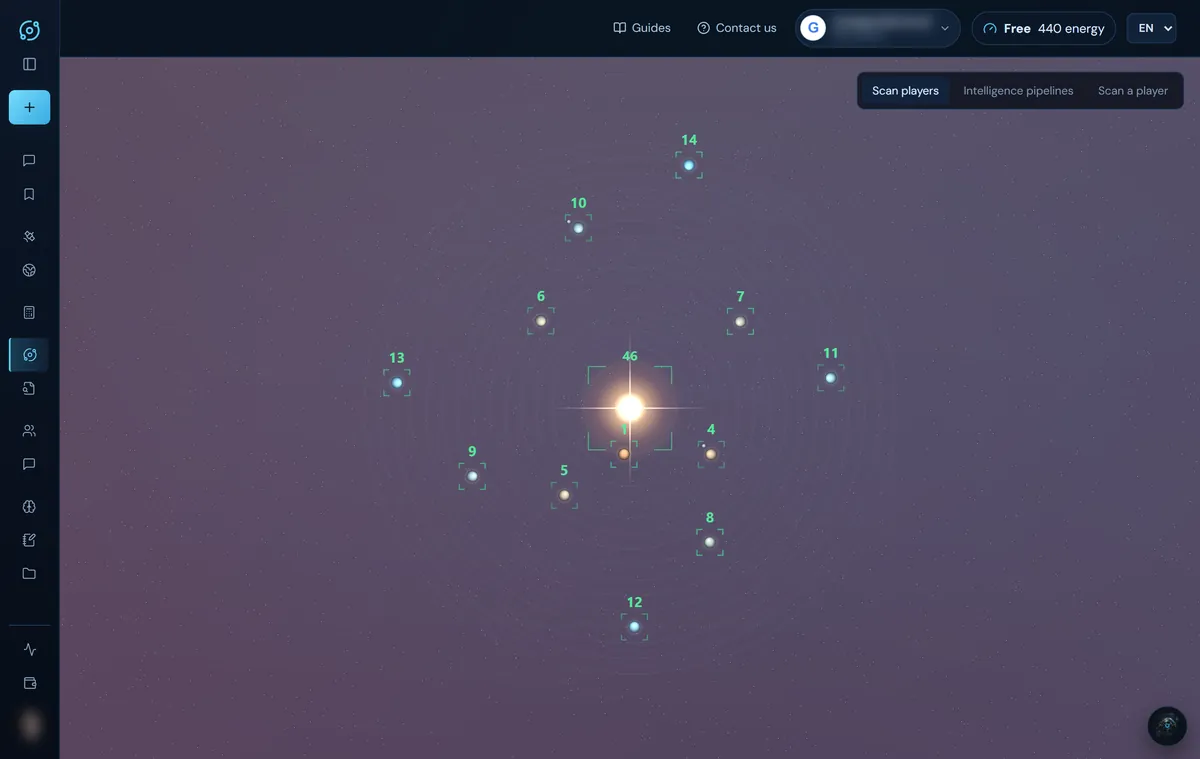
The planet card and the player report
Clicking a planet opens two panels:
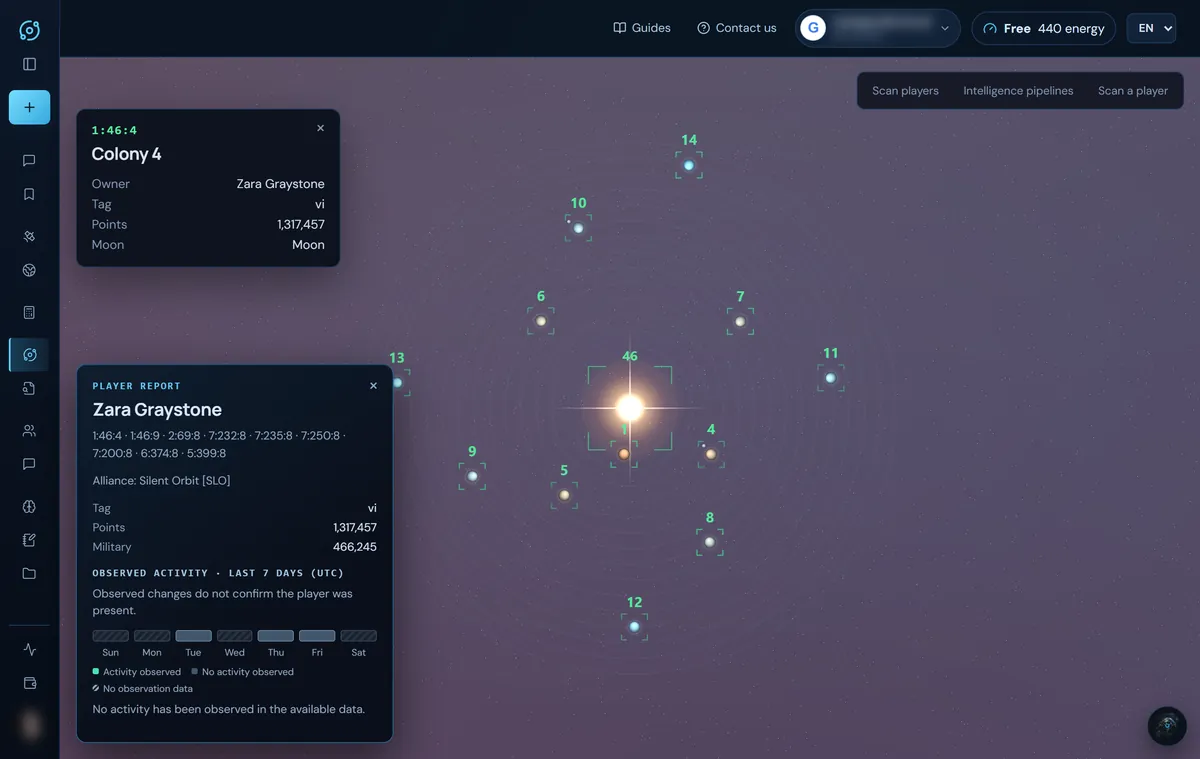
Planet card: full coordinates, planet name, Owner (or “yours”), the player's Tag (i, I, v…), Points and Moon (with its name) or “No moon”.
Player report: their name, the coordinates of all their planets, Alliance (name and tag), tag, points and military, and Observed activity · last 7 days (UTC): one bar per day that says:
- Activity observed: something went up in the rankings that day.
- No activity observed: the whole day was observed and nothing changed.
- No observation data: there were not enough readings; no conclusion is drawn.
Below, the latest observed activity with its UTC time. Observed changes do not confirm the player was present: see Scans and intelligence.
Where the map data comes from
- Planet and moon positions come from the official planet list (
universe.xml), which Gameforge publishes once a week. They are the same coordinates you see opening the galaxy in the game. A new colony or a newly created moon only appears after the next publication. - The owner, tag and points come from the player lists (daily) and the rankings (hourly); the alliance, from the player's official file.
Map markers
Scans, pipelines, the radar and the chat assistant can mark players on the map with green frames. They appear one by one; the top three in each galaxy get a bigger frame and, at the end, the first in the list is flagged as Potential target. Clicking another name in the list flies the map to them and makes them the target. A marker stays visible at any zoom: if the planet is off screen, it sticks to the edge with an arrow pointing towards it. The scans and the right-hand panel are explained in Scans and intelligence.
Screenshots show the English interface with sample data; player names are fictitious.