Intelligence
The galaxy map, the player scanner, espionage reports and how to read observed activity.
Orbit follows the public data of all 418 playable universes: rankings every hour, players every day and planets every week. From that it builds the map, the scanner and each player's observed activity.
The galaxy map
The Scanner section opens the universe map. Scroll to zoom in, drag to move around and click to go in: universe → galaxy → system. You can also type coordinates into Go to.
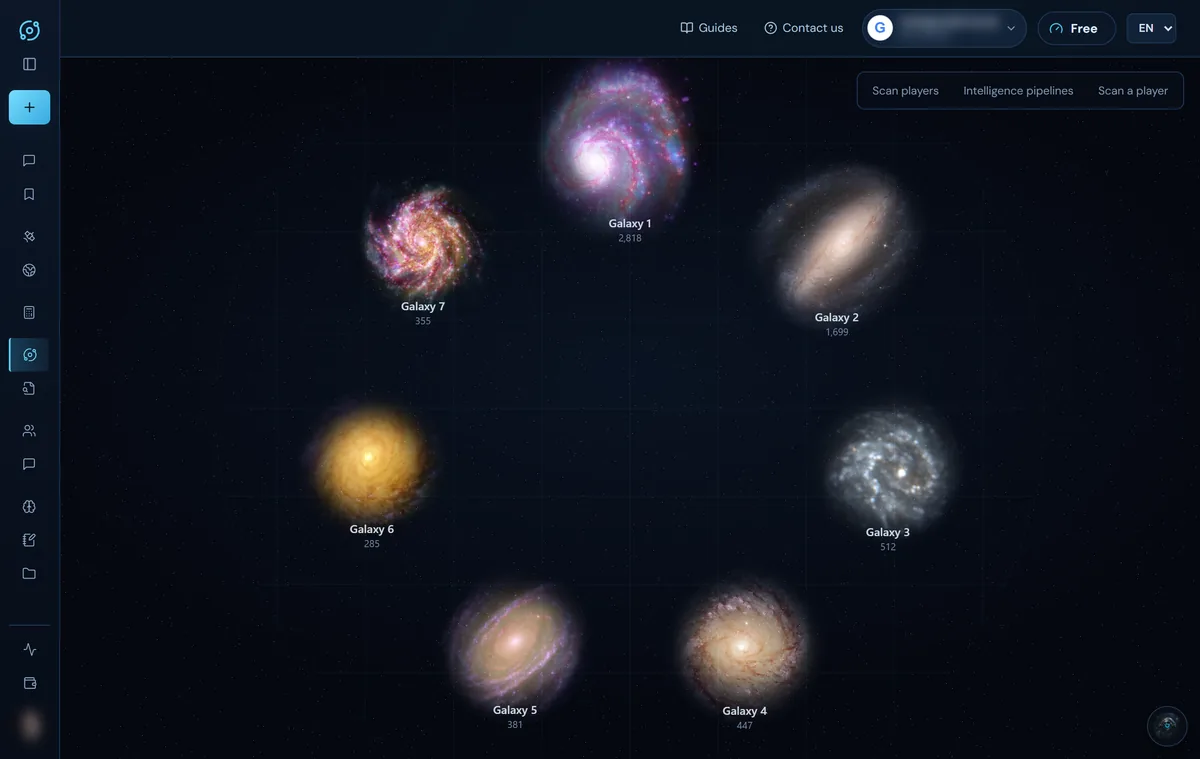
Clicking a planet shows its owner, alliance, points and whether it has a moon, and you can open the player's profile with their observed activity over the last 7 days (UTC). Browsing the map is free and unlimited.
The scanner
To the right of the map there are three tabs:
- Scan players: finds players who are not growing and are not yet flagged as inactive, or who have lost fleet. Filter by galaxy, points, moon only or a minimum number of planets. Results are marked on the map.
- Intelligence pipelines: ready-made searches (dead window, wake-ups, neighbourhood and soft targets: high economy with low military).
- Scan a player: the radar for a specific player, with their time slots.
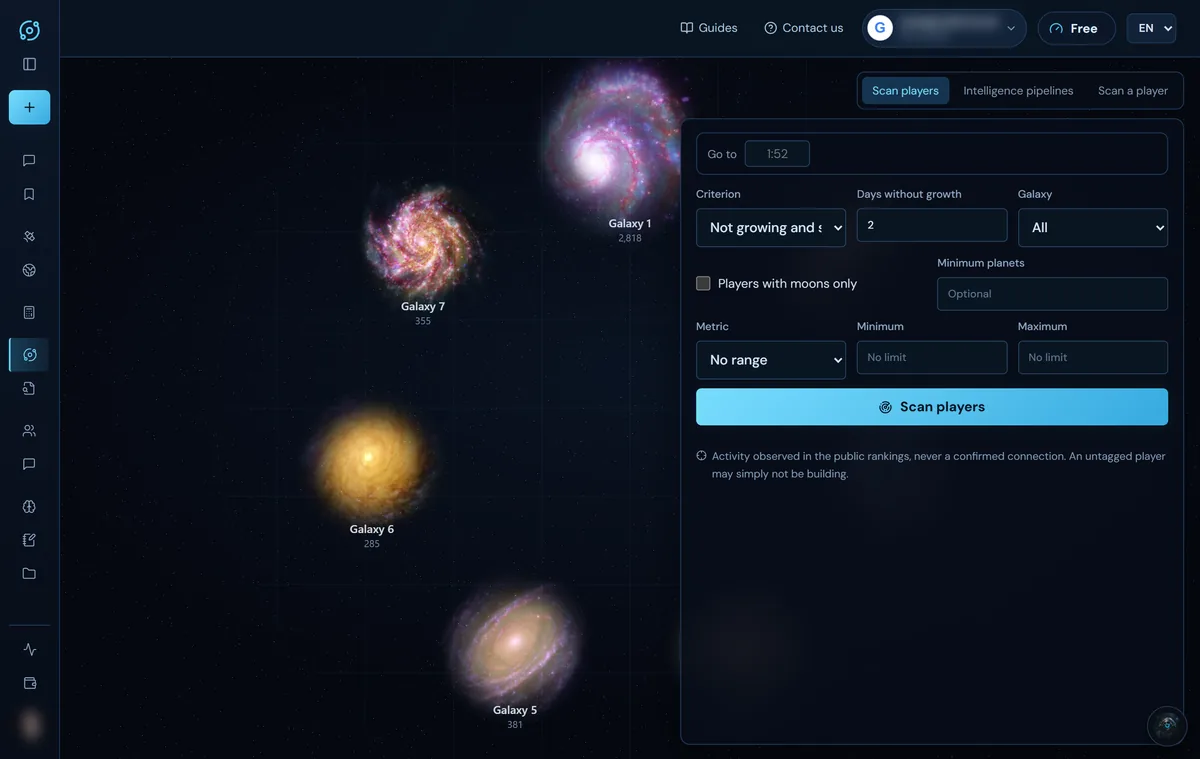
On the Free plan you get one scan of each type every 7 days. With Pro, Max or an alliance seat, scans are unlimited. The assistant can also scan for you from the chat.
Espionage reports
In Espionage reports you save your reports so you can reuse them:
- In OGame, open the report message and click its API button. Copy the code (it starts with
sr-for espionage orcr-for combat). - Paste it into Report API string and click Import and save.
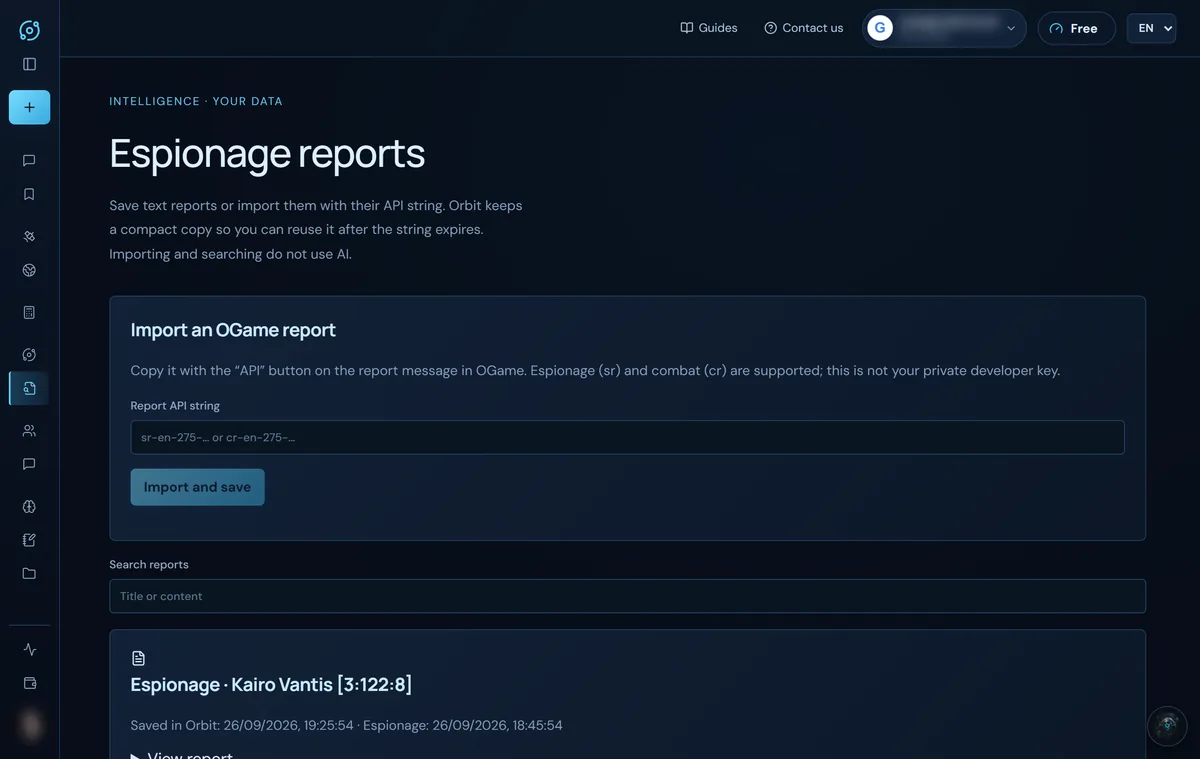
- Orbit keeps a compact copy, so the report is still available once the code expires.
- You can also save a report's text by hand (Save report · no AI), with its espionage date.
- Importing and searching use no energy. The assistant reads your reports when you ask it for an analysis or a simulation.
- The code is not your private developer key; it is the report's public code. Orbit reads it through a community service that returns the data from the official API. If that service does not respond, paste the report text.
Observed activity: how to read it
This is Orbit's most important rule:
A change in the rankings is observed activity, never a confirmed connection.
- Someone's points going up at a certain hour tells you that something changed in that slot; it does not prove they were connected.
- No change at all does not prove they are disconnected, asleep or away: they may be playing without building.
- Losing points does not count as activity (otherwise an inactive player being farmed would look active).
- A slot with no readings is unknown, never zero.
- In the histogram, the height is the proportion of intervals with changes, not the probability that they are online. No hour is “safe” to attack.
Use it as one more clue, alongside your probes and your own judgement.
Screenshots show the English interface with sample data; player names are fictitious.