Getting started
Create your account, choose your universe, synchronise your commander and meet your assistant.
Orbit is a copilot for OGame: it reads the official public data for your universe, organises it into maps and scanners, and lets you ask an AI assistant that looks things up for you. These are the five minutes you need to get going.
Create your account
Sign in to Orbit with Continue with Google: your account is created the first time you sign in, with no new password to remember. If a friend has sent you their invitation link, sign in from that link and the code is applied automatically.
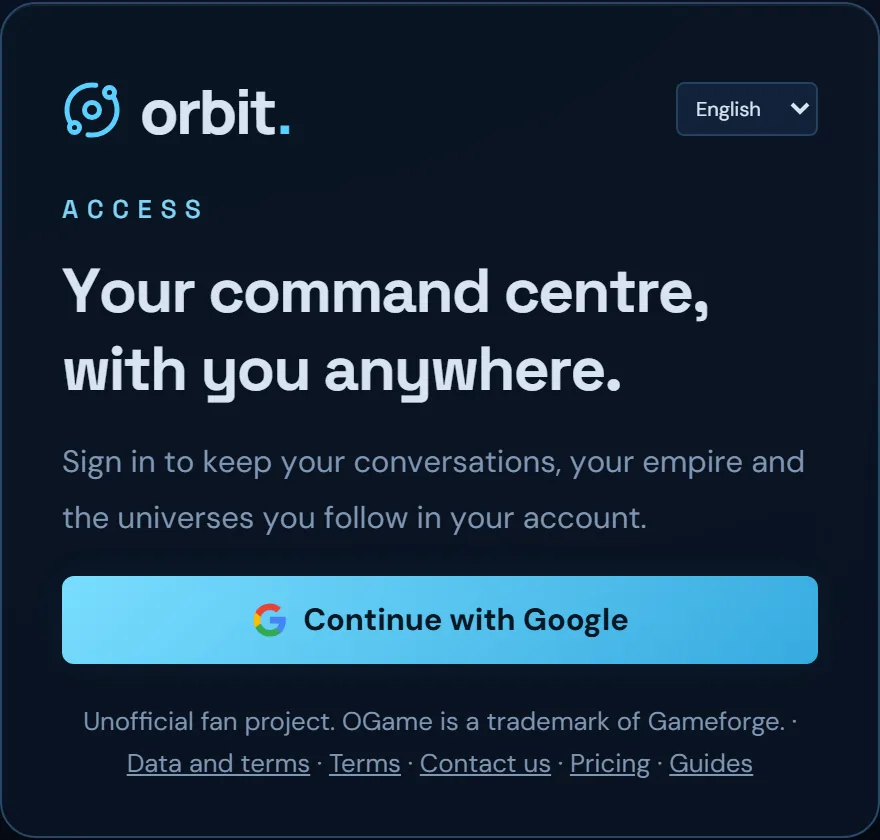
The first time you sign in, Orbit asks for your language and which voice you want for your assistant. Then a hands-on eight-step guide opens; each step ticks itself off as you use it. You can close it and pick it up again whenever you like with Resume practical guide.
Choose your assistant
Your assistant has three personalities. All three consult the same data and have the same limits: they change the tone and priorities of the advice, never the facts.
- Eirene, peaceful strategist: warm and patient; steers you towards growth, cooperation and the lowest-risk options. She is the only one you can rename.
- Adam, neutral command: concise and precise, focused on figures, conditions and sources.
- SX-9, alien tactical unit: military and aggressive; puts the offensive first and spells out its costs and risks.
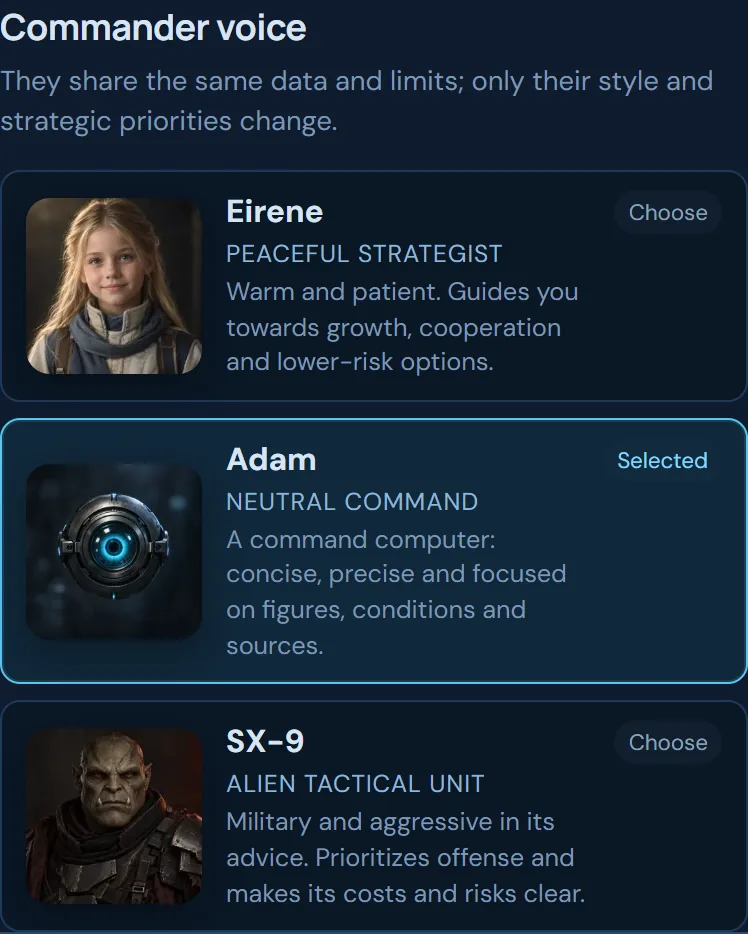
To change it later, click My profile (at the top) and scroll down to Commander voice. That is also where you choose your portrait and language.
Synchronise your commander
Orbit needs to know who you are in the game to work with your real data. In My profile, click Synchronise account and follow the three steps:
- Universe: choose the universe language and the universe. The list comes from the official OGame lobby.
- Account: type your player name (or your id) and pick it from the results.
- Dossier: check your planets, moons, alliance, rank and points, and click Start.
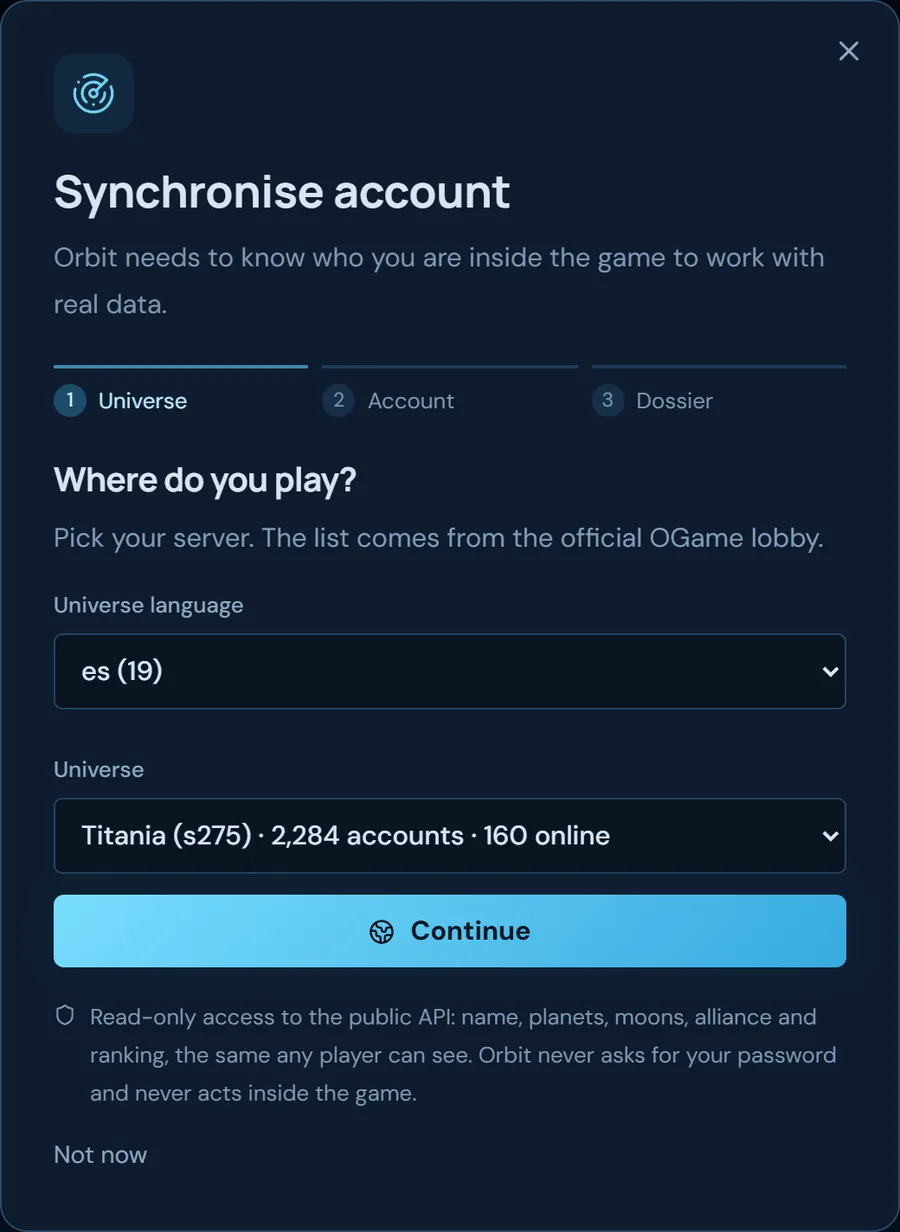
Orbit only reads the public API, the same data any player can see. It never asks for your game password and never acts inside the game.
If you play in several universes, Universes and commanders holds one dossier per universe. The active one is the one the assistant uses when answering; from there you can activate another, resynchronise it or synchronise another universe.
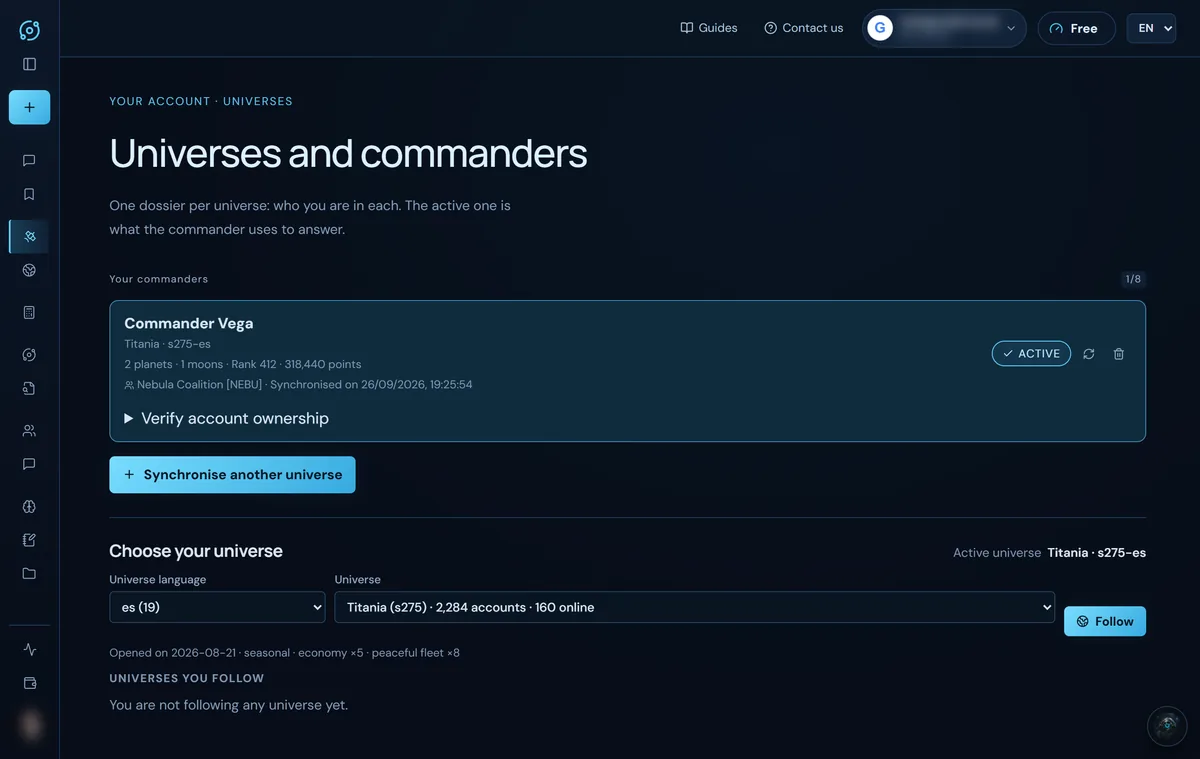
Verify that the account is yours (optional)
On your commander's card, open the verification and click Generate verification code. Rename one of your planets to that exact code and click Check code. The public source can take a while to reflect the change: keep the name until Orbit confirms it, then switch back to the usual one. Verification is needed, for example, to receive the extra energy from invitations.
Talk to your assistant
The Commander section is the chat. Write whatever you need in plain language: “Who is inactive near 3:122?”, “Simulate my fleet against this report”, “What time does their fleet return?”. The assistant consults the data with its tools and answers with figures and sources.
- Each universe has its own conversations (up to NaN); you will find them under Chats.
- On every other screen there is a floating assistant: it is the same conversation, so you can ask without leaving where you are.
- Every answer uses energy. See Energy and plans.
Next step: find out what the chat can do.
Screenshots show the English interface with sample data; player names are fictitious.