Universe, sync and verification
Choose and follow universes, sync your player from the official API and prove the account is yours with a code.
Everything in Orbit works on an active universe. This guide explains how to choose it, how to synchronise your player so Orbit knows who you are, and how to verify that the account is yours.
Choosing and following a universe
Open Universes and commanders (menu, YOUR ACCOUNT group). The lower part, Choose your universe, is the selector:
- Universe language: the community (es, en, fr…). In brackets, how many universes it has.
- Universe: the list comes from the official OGame lobby, sorted from most to fewest accounts. Each option shows the name, number, accounts and players online.
- Below it you see the opening date, the category (miner, fleeter, balanced, seasonal) and the economy and peaceful fleet speeds.
- Click Follow: the universe is added to your list and becomes active.
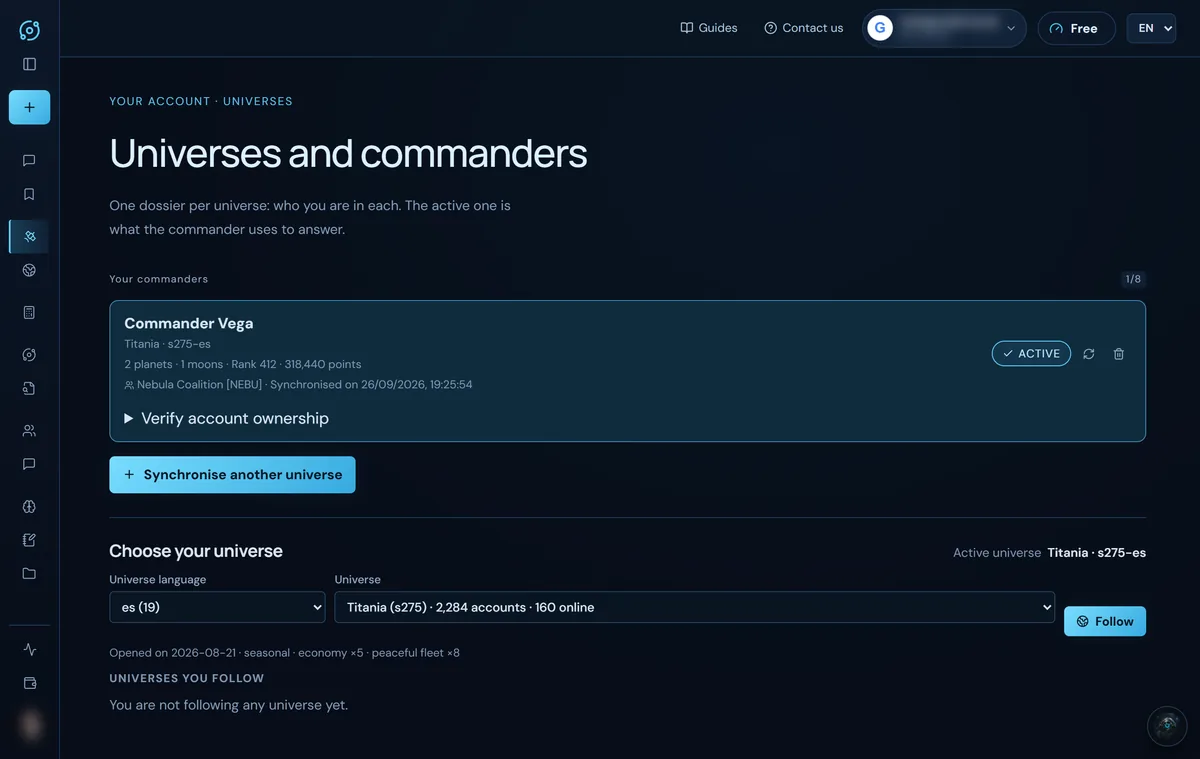
Universes you follow lists each universe with the date of its latest snapshot and its number of players. Use makes it active; the bin icon unfollows it. If a universe is new to Orbit, you will see Collecting the first snapshot… for a few seconds.
What the active universe is and what is kept per universe
The active universe is saved in your account, not in the browser: it is the same on your computer and your phone. The chat, the map, the scans, the calculators and the alliance all use it. In the chat box, the button with the universe's name brings you here to change it.
Each universe has its own things, kept apart from the others:
- your commander dossier (who you are in that universe);
- your conversations (up to NaN) and your saved plans (up to NaN);
- your memory, your espionage reports, your Empire, your saved fleet and your class;
- the alliance spaces: you only see those of your active universe.
Switching universe switches all of that at once. Nothing is deleted: when you come back, you find it as you left it. Orbit watches all 418 playable universes even if nobody follows them, so every universe has its history.
Synchronising your player
Synchronising tells Orbit who you are inside the game. You open it from My profile → Synchronise account, from Synchronise another universe or a card's resync icon, from Status and connections or from step 01 of the practical guide. There are three steps:
- Universe: language and universe, just like in the selector. Click Continue.
- Account: type your player name as it appears in the ranking (or your numeric id; at least two characters) and click Search. Up to eight matches appear: the exact name first, then names that start the same way, then by points. Each shows rank, points and alliance tag. Click yours.
- Dossier: check your planets, moons, general rank, points, alliance, universe speeds and the list of planets with their coordinates (and the moon's size). Click Start. If it was not you, Change account.
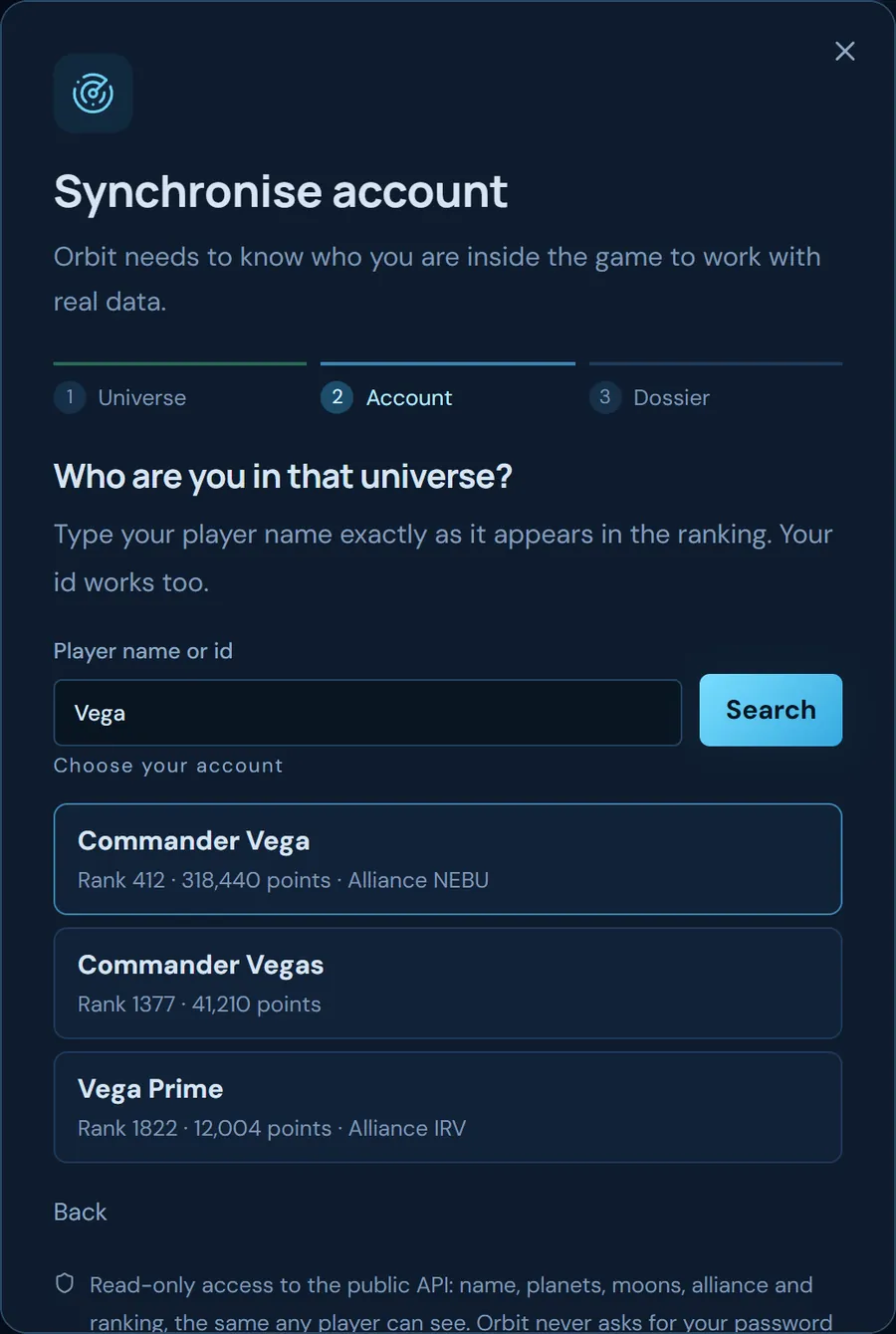
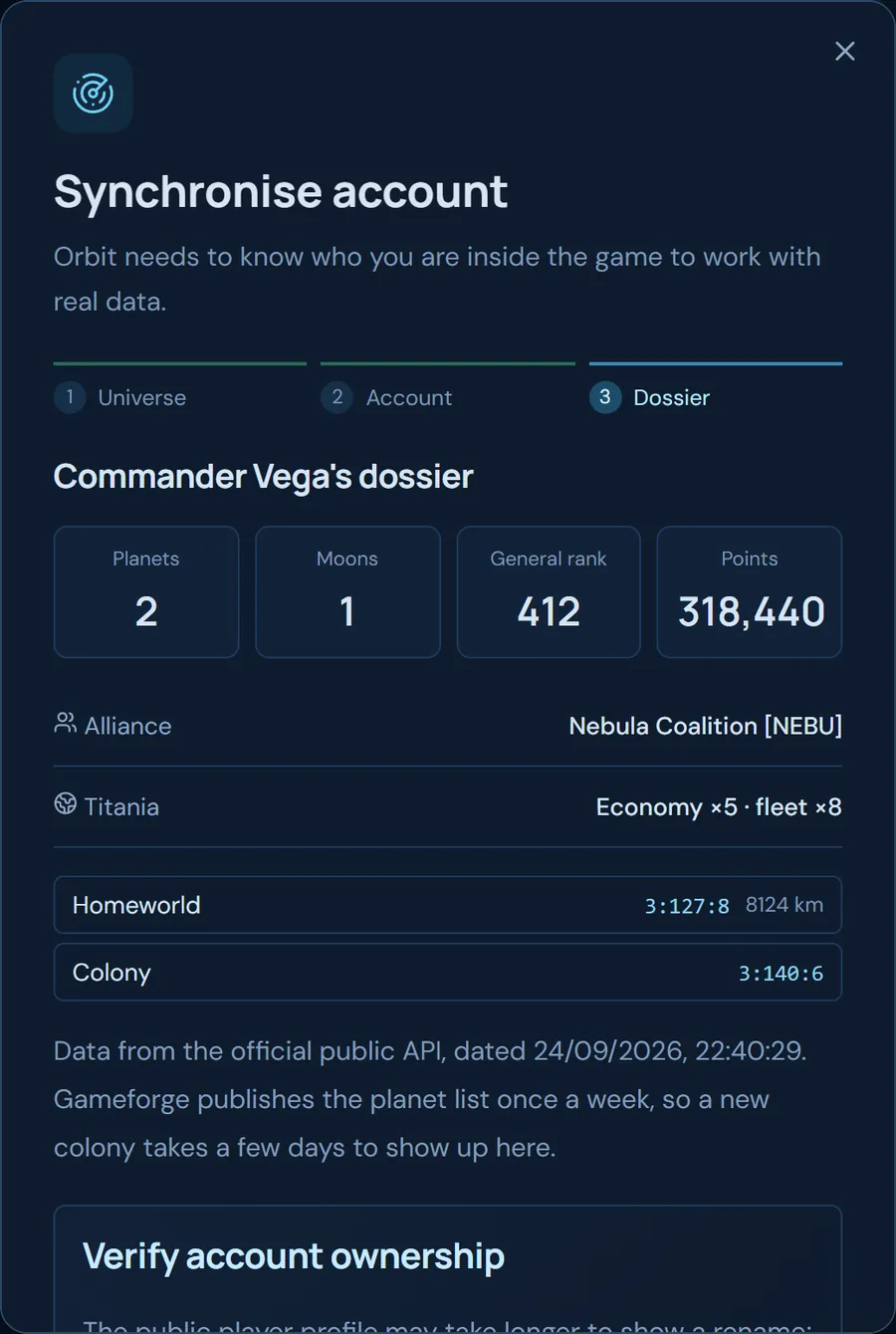
When you click Start, that universe becomes active and followed, Empire opens so you can complete your fleet, and the chat box is pre-filled with “Introduce yourself and give me the initial report on my account.” (it is not sent until you send it). Not now closes the window without synchronising.
You can have up to 8 dossiers, one per universe. On each card: Activate (or Active), Resynchronise and Forget (deletes that dossier).
Where the data comes from and how often it changes
Everything comes from Gameforge's official public API, the same that any player can see. Orbit does not log in to your account or ask for your password.
| Official source | What it contains | How often Gameforge publishes it |
|---|---|---|
Rankings (highscore.xml) | Points and rank in each category | Every hour |
Players (players.xml) | Name, id, tag (i, I, v…) and alliance | Every day |
Alliances (alliances.xml) | Name, tag and members | Every day |
Planet list (universe.xml) | Every planet and moon with its coordinates | Every week |
Player file (playerData.xml) | Your planets, moons, alliance and points per category | About once a week |
Settings (serverData.xml) and lobby | Speeds, galaxies, ACS, debris… | Every day |
What that means in practice:
- The search in step 2 uses players, rankings and alliances.
- The dossier comes from your player file (
playerData.xml). The card shows that file's date (“API data from…”), not the date you synchronised. - A new colony takes a few days to appear, because the player file and the planet list are weekly. Resynchronising before Gameforge publishes a new file returns the same data.
- Missing data is shown as “no data”, never as zero.
Verifying that the account is yours
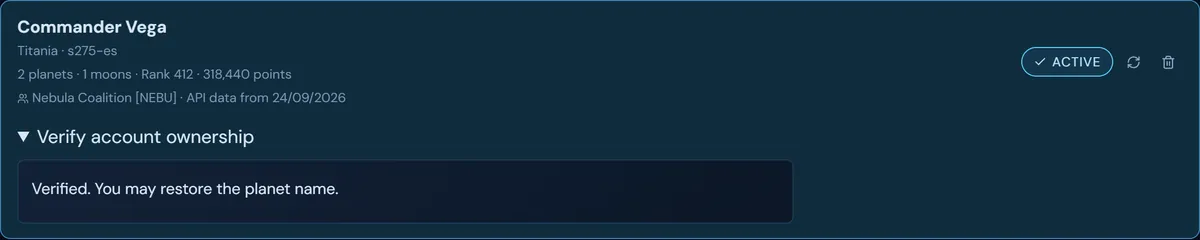
Synchronising only says who you claim to be. Verification proves it: you put a code in the name of one of your planets and Orbit looks for it in the official player file. It is on each commander's card (Verify account ownership) and at the end of the synchronisation dossier.
- Click Generate verification code. You get a code like
ORBIT7F3A9C21DE, valid for 14 days (Copy code copies it). - In OGame, manually rename one of your planets to that exact code.
- Come back to Orbit and click Check code if it says “You can check now”.
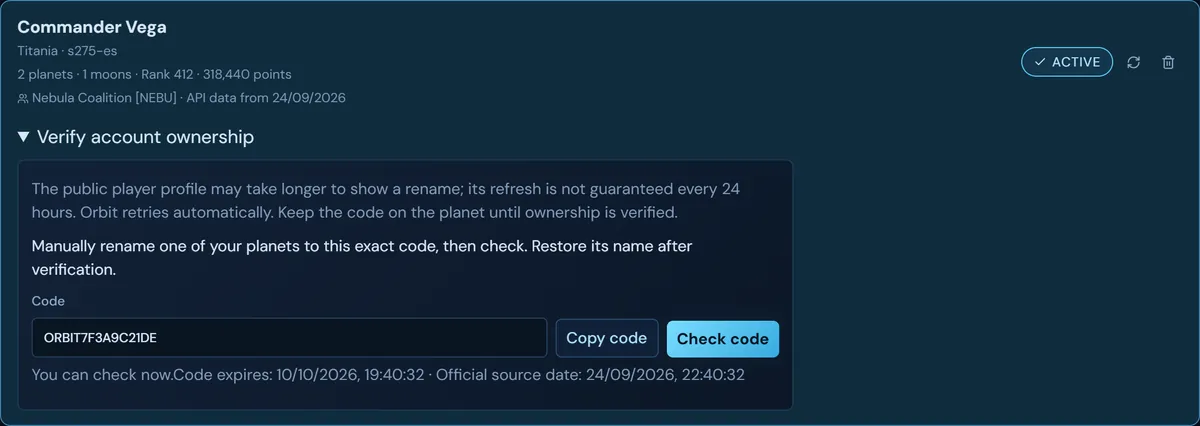
Why it can take up to a week: Orbit can only see the new name once Gameforge publishes a player file of yours dated after the code was created, and that file is refreshed roughly once a week. Until then you will see “Code not yet visible”.
- You do not need to click again: checks are automatic. Orbit reviews pending codes every fifteen minutes when they are due, and schedules the next attempt for the first moment a new file can exist (the next day, or right when the previous file turns one week old), never more than 24 hours later.
- If you click Check code yourself, the next manual check becomes available fifteen minutes later; the line below says when, when the code expires and the date of the latest official file.
- Leave the code on the planet until you see Account verified (on the card: “Verified. You may restore the planet name.”). After that you can put your usual name back.
- If the code expires, generate a new one.
What verifying gives you: it completes step 01 of the practical guide and reserves that player for your Orbit account: if someone else tries to verify it, they will see “Another user has already verified this account.” Today it does not unlock features or energy: the rest of Orbit works the same without verifying, and you can prepare your fleet or use the chat while you wait.
Next step: find out what the chat can do.
Screenshots show the English interface with sample data; player names are fictitious.